 Keepwell
Debloat Windows 11, safely
Remove Copilot, ads and bloatware without PowerShell. See every change before it happens, put any of it back, and keep it that way after Windows updates.
Windows 10 and 11No PowerShell, no scripts14 days free
Copilot, ads and bloatware, in one place
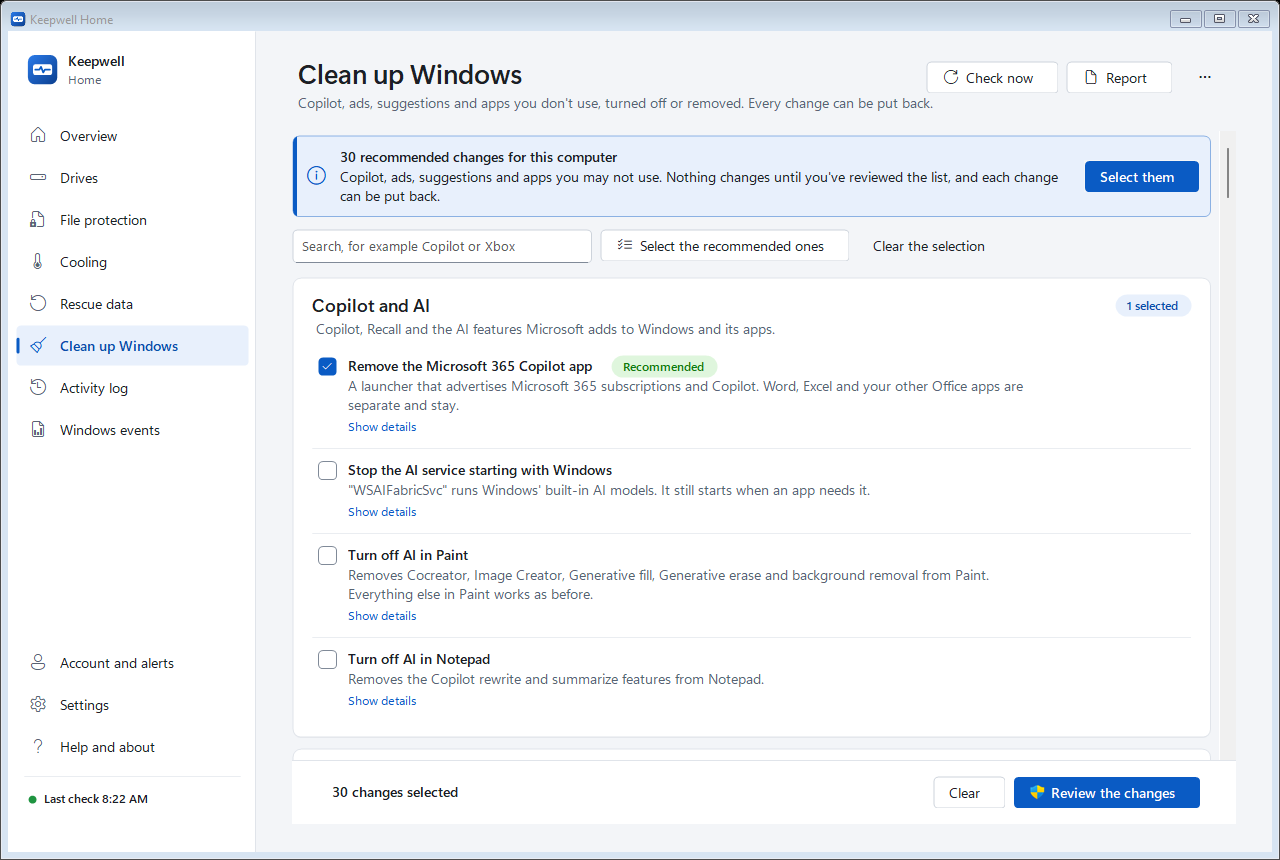
Keepwell lists only what's actually on your PC. Each item says what it does, and whether it's recommended, up to you, or needs care.
Copilot and AI
The Copilot and Microsoft 365 Copilot apps, Recall and Click to Do on Copilot+ PCs, and the AI in Paint, Notepad and Edge.
Ads and suggestions
Promoted apps in Start, "fun facts" on the lock screen, offers in Settings and File Explorer, tips notifications and the "finish setting up your PC" screens.
Bing in search, and Widgets
Search from Start finds your apps and files without web results, and the news feed on the taskbar goes.
Preinstalled apps
Microsoft News, Weather, Solitaire, Clipchamp, Feedback Hub, Power Automate, Teams, the new Outlook and more. Calculator, Photos, Paint and the other basics aren't even listed.
Promoted apps and games
Candy Crush, TikTok, Spotify, Netflix, Disney+, Instagram, LinkedIn and the other apps installed as promotions.
Edge nags and tracking
Edge's shopping offers, sponsored news on the new tab and "make Edge your default" prompts; the advertising ID, activity history and optional diagnostic data.
See every change before it happens
Debloating with the wrong script can break Windows Update, sign-ins or the Store. Keepwell is built so it can't.
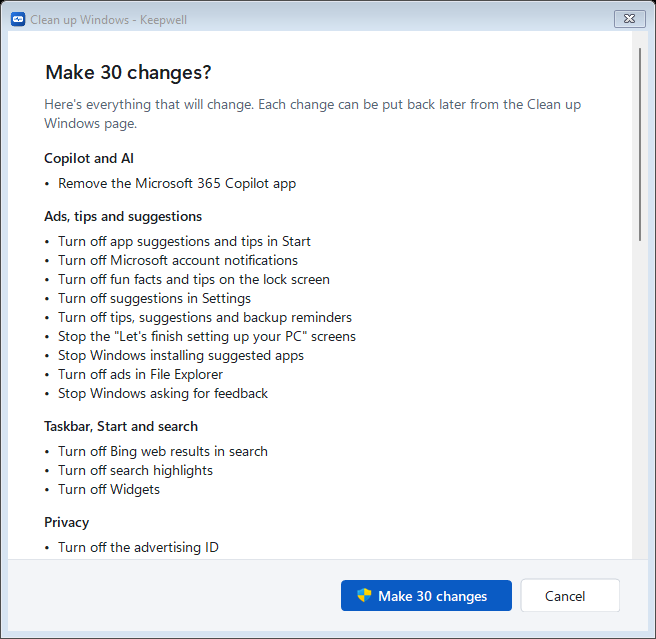
- Nothing changes until you've reviewed the full list
- A restore point is made first
- Before each change, what was there is recorded, so Put back restores exactly that, one item at a time or all at once
- Removed apps come back from the Microsoft Store with one click
- After each Windows update it checks what came back, tells you, and removes it again
Windows keeps working, and stays secure
- Windows Update
- Microsoft Defender, SmartScreen and the firewall
- The Microsoft Store and App Installer
- Edge itself, and the WebView2 engine apps rely on
- Calculator, Photos, Paint, Notepad, Terminal and the Snipping Tool
- Drivers and their control panels
- Anything Start and search need
- OneDrive, while files could be left only in the cloud
Every change, in plain words
On your PC, the app shows only the items that apply to it. In the app, Show details next to each one lists the exact settings it changes.
Copilot and AI 9
Copilot, Recall and the AI features Microsoft adds to Windows and its apps.
| Remove the Copilot app | Microsoft's AI chat app. It's an app like any other: Windows works the same without it. | Recommended |
| Turn off Copilot in Windows Windows 10 and early Windows 11 | Hides the Copilot button on the taskbar and turns off the Copilot pane in Windows 10 and earlier versions of Windows 11. | Recommended |
| Remove the Microsoft 365 Copilot app | A launcher that advertises Microsoft 365 subscriptions and Copilot. Word, Excel and your other Office apps are separate and stay. | Recommended |
| Turn off Recall Copilot+ PCs | Recall saves pictures of your screen every few seconds so you can search them later. This removes it from Windows. If you use Recall, the screenshots it has saved are deleted. | Recommended |
| Turn off Click to Do Copilot+ PCs | The AI menu that appears when you press Windows+click or swipe in from the right, which looks at what's on your screen. | |
| Remove AI Hub | A Microsoft Store page that promotes AI apps. | Recommended |
| Stop the AI service starting with Windows | "WSAIFabricSvc" runs Windows' built-in AI models. It still starts when an app needs it. | |
| Turn off AI in Paint Windows 11 | Removes Cocreator, Image Creator, Generative fill, Generative erase and background removal from Paint. Everything else in Paint works as before. | |
| Turn off AI in Notepad Windows 11 | Removes the Copilot rewrite and summarize features from Notepad. |
Ads, tips and suggestions 10
Promotions in Start, on the lock screen, in Settings and in File Explorer, and the screens that ask you to finish setting up.
| Turn off app suggestions and tips in Start | Stops Start showing apps to install, and tips, among your own apps and files. | Recommended |
| Turn off Microsoft account notifications Windows 11 | The reminders on your account picture in Start and in Settings: Microsoft 365, OneDrive storage, backing up. | Recommended |
| Turn off fun facts and tips on the lock screen | Your lock screen picture stays as it is; only the text and links over it go. | Recommended |
| Turn off suggestions in Settings | The suggested content and offers at the top of Settings pages. | Recommended |
| Turn off tips, suggestions and backup reminders | Notifications with tips about Windows, offers for Microsoft services, and reminders to back up with Windows Backup and OneDrive. | Recommended |
| Stop the "Let's finish setting up your PC" screens | The full-screen pages after updates that ask you to sign in, back up, and try Microsoft 365 and Game Pass. | Recommended |
| Stop Windows installing suggested apps | Windows can quietly add promoted apps and games for you. This stops it; apps already installed stay until you remove them. | Recommended |
| Turn off Microsoft consumer experiences Enterprise and Education | The policy that stops promoted apps, games and links being added for new users. | Recommended |
| Turn off ads in File Explorer | The OneDrive and Microsoft 365 offers File Explorer shows above your files. | Recommended |
| Stop Windows asking for feedback | The pop-ups asking how likely you are to recommend Windows. | Recommended |
Taskbar, Start and search 9
Web results in search, the news feed, and buttons you may not use.
| Turn off Bing web results in search | Searching from Start or the taskbar finds your apps, files and settings, without web results and Bing suggestions. | Recommended |
| Turn off search highlights | The illustrations, trending searches and "on this day" content in the search box and search window. | Recommended |
| Turn off Widgets Windows 11 | The news and weather feed on the taskbar and the board that opens when you point at it. | Recommended |
| Turn off News and interests Windows 10 | The weather and news feed on the taskbar. | Recommended |
| Remove the Chat button Windows 11 before 24H2 | The Teams Chat button on the taskbar. | Recommended |
| Hide the Task View button | Windows+Tab still shows your open windows and desktops. | |
| Show search as an icon | A search button instead of the wide search box, which leaves more room for your apps. | |
| Move Start to the left Windows 11 | Start and the taskbar's icons on the left, as in Windows 10. | |
| Add "End task" to the taskbar Windows 11 | Right-click an app on the taskbar to close it when it stops responding, without Task Manager. |
Privacy 9
What Windows sends to Microsoft, and what it uses to personalize ads.
| Turn off the advertising ID | Apps can't use it to show you ads based on what you do in other apps. | Recommended |
| Turn off tailored experiences | Microsoft won't use your diagnostic data to pick tips, ads and recommendations for you. | Recommended |
| Send only required diagnostic data | Windows sends Microsoft the minimum it needs to keep Windows secure and up to date, and nothing about how you use apps and websites. | Recommended |
| Turn off diagnostic data Enterprise and Education | Enterprise and Education editions can stop sending diagnostic data to Microsoft altogether. | Recommended |
| Turn off the diagnostics service | "Connected User Experiences and Telemetry", the service that sends diagnostic data. Windows works without it. Microsoft doesn't support turning it off. Windows Insider builds need it. | |
| Turn off activity history | Windows won't keep a history of the apps, files and sites you open, or send it to Microsoft. | Recommended |
| Turn off inking and typing personalization | Windows stops learning from what you type and write to improve suggestions, and stops sending it to Microsoft. Handwriting and typing suggestions get less personal. | |
| Turn off online speech recognition | Your voice isn't sent to Microsoft to be recognized. Voice typing (Windows+H) and voice access stop working, or work less well. | |
| Turn off feedback and experience-program tasks | Scheduled tasks that collect usage data for Microsoft's Customer Experience Improvement Program and Feedback Hub. |
Apps that came with Windows 38
Remove the ones you don't use. Each can be installed again from the Microsoft Store. Calculator, Photos, Paint, Notepad, the Store and the other basics aren't listed.
| Remove Microsoft News | A news app from MSN. | Recommended |
| Remove Weather | MSN Weather. Weather on the web and in Widgets isn't affected. | Recommended |
| Remove Solitaire Collection | Card games with ads; without ads is a paid subscription. | Recommended |
| Remove Clipchamp | A video editor that comes with Windows. | Recommended |
| Remove Feedback Hub | For sending feedback and bug reports to Microsoft. | Recommended |
| Remove Tips | Introductions to Windows features. | Recommended |
| Remove Bing Search | Adds Bing web results to Windows search. | Recommended |
| Remove Dev Home | A developer dashboard Microsoft has retired. | Recommended |
| Remove Power Automate | Records and repeats tasks: for automating work. | Recommended |
| Remove Microsoft To Do | To-do lists kept in your Microsoft account. | |
| Remove the new Outlook | Microsoft's mail and calendar app. Outlook from Microsoft 365, if you have it, is separate and stays. | |
| Remove Microsoft Teams (free) | Teams for personal use. Teams for work, installed by your organization, is separate. | |
| Remove Phone Link | Shows your phone's messages, calls and photos on the PC. | |
| Remove Quick Assist | Lets someone take control of this PC to help you. Scammers posing as support also ask people to open it. | |
| Remove Microsoft Family Safety | Screen time and content limits for children's accounts. | |
| Remove Sticky Notes | Notes on your desktop, synced with your Microsoft account. | |
| Remove Sound Recorder | Records audio from a microphone. | |
| Remove Clock | Alarms, timers, a stopwatch and focus sessions. | |
| Remove Movies & TV | Plays videos and rents films. Media Player also plays videos. | |
| Remove OneNote for Windows 10 | The old OneNote app. OneNote from Microsoft 365 is separate. | |
| Remove Get Help | Microsoft's support app. Windows' troubleshooters open in Get Help, so they won't run without it. | Caution |
| Remove Mail and Calendar | Retired by Microsoft and replaced by the new Outlook. | Recommended |
| Remove People | A contacts app Microsoft has retired. | Recommended |
| Remove Maps | A maps app Microsoft has retired. | Recommended |
| Remove Skype | Retired by Microsoft in 2025. | Recommended |
| Remove Cortana | Microsoft's old voice assistant, retired. | Recommended |
| Remove 3D Viewer | Shows 3D models. | Recommended |
| Remove Paint 3D | Retired; Paint is separate and stays. | Recommended |
| Remove Mixed Reality Portal | For virtual reality headsets. | Recommended |
| Remove Print 3D | Retired. | Recommended |
| Remove Mobile Plans | Buys mobile data for PCs with a SIM card. | Recommended |
| Remove Messaging | Retired. | Recommended |
| Remove Microsoft Wallet | Retired. | Recommended |
| Remove the old MSN apps | Money, Sports, Travel, Food & Drink and Health & Fitness, all retired. | Recommended |
| Remove other retired Microsoft apps | 3D Builder, Network Speed Test and Sway. | Recommended |
| Remove Power BI | Business reports and dashboards. | |
| Remove Microsoft Journal | Handwritten notes with a pen. | |
| Remove PC Manager | Microsoft's app for clearing space and speeding up startup. |
Promoted apps from other companies 13
Apps Windows or the computer maker installed as promotions. If you installed one yourself and use it, leave it.
| Remove Spotify | Music streaming. | |
| Remove Netflix | Video streaming. | |
| Remove Disney+ | Video streaming. | |
| Remove Prime Video | Video streaming. | |
| Remove TikTok | Short videos. | |
| Remove Instagram | Photos and messages. | |
| Remove Hulu | Video streaming. | |
| Remove Facebook | The Facebook app. | |
| Remove WhatsApp | Messages and calls. | |
| Remove LinkedIn | The LinkedIn app. | |
| Remove Candy Crush and other King games | Games with in-app purchases. | |
| Remove other promoted games | Games such as March of Empires, Asphalt, FarmVille, Cooking Fever and casino slots. | |
| Remove other promoted apps | Apps such as Booking.com, Amazon, ESPN, Pandora, Shazam, Flipboard, Twitter and iHeartRadio. |
Xbox and gaming 5
Only remove these if you don't play games from the Microsoft Store or Game Pass.
| Remove the Xbox app | Microsoft's app for PC Game Pass and the Xbox store. PC Game Pass games, and games bought in it, need it. | |
| Remove Xbox Game Bar | The overlay Windows+G opens, for recording and chat while you play. Recording games with Windows+G, and some controllers' Xbox button, use it. | |
| Remove Xbox sign-in components | What games from the Microsoft Store use to sign in to Xbox: Xbox Identity Provider, Xbox TCUI and speech-to-text. Games from the Microsoft Store or Game Pass can't sign in to Xbox, so most of them won't start. | Caution |
| Remove Xbox Console Companion | The old Xbox app, retired. | Recommended |
| Turn off background game recording | Game DVR keeps recording the last moments of games so you can save them. Turning it off can make games run more smoothly, and stops the "ms-gamingoverlay" message once Game Bar is removed. |
Microsoft Edge 5
Edge stays installed, because Windows and many apps need it. These stop its sidebar, shopping offers and nagging. Edge will say it's "managed by your organization" afterwards: that's how these switches work.
| Turn off Copilot and AI in Edge | Removes Edge's sidebar and Copilot button, stops Copilot reading the page you're on, and turns off AI writing help and AI history search. With a personal Microsoft account, Edge may keep its Copilot button: turn it off in Edge's settings, under Copilot. | Recommended |
| Turn off shopping offers in Edge | Coupons, price comparisons, cash back, donation offers and Microsoft Rewards. | Recommended |
| Turn off news and sponsored links on Edge's new tab | A new tab shows the search box and your own links, without the MSN news feed and sponsored tiles. | Recommended |
| Stop Edge's setup screens and suggestions | No first-run pages, no requests to make Edge your default browser, no recommendations, feature tours or Acrobat offers. | Recommended |
| Stop Edge running in the background | Edge closes completely when you close it, instead of staying open to start faster. Edge takes a moment longer to open. |
OneDrive 1
Microsoft's cloud storage, which Windows signs you up for.
| Remove OneDrive | Uninstalls the OneDrive app. Files already in your OneDrive stay there, online. Files that are only in the cloud aren't on this computer afterwards: open them at onedrive.com. | Caution |
File Explorer 6
Settings that make files easier to see and work with.
| Show file name extensions | Names show their type, like .pdf or .exe, which also makes fake documents ("invoice.pdf.exe") easy to spot. | Recommended |
| Open File Explorer at This PC | Your drives and folders, instead of Home with recent files. | |
| Don't show recent files in File Explorer | Home and Quick access stop listing the files and folders you opened lately. | |
| Show hidden files | Files and folders Windows and apps hide, such as AppData, show faded. | |
| Use the full right-click menu Windows 11 | Right-clicking shows every option at once, without "Show more options". | |
| Remove Gallery from File Explorer Windows 11 | Gallery, the photo view in File Explorer's side pane. Your Pictures folder stays. |
Other settings 3
Small things that get in the way.
| Turn off Fast Startup | Shutting down then closes Windows completely. Startup takes a few seconds longer, but updates, drivers and other systems on the same drive work more reliably, and drive checks run when they should. | |
| Stop the Sticky Keys question | Pressing Shift five times no longer asks whether to turn on Sticky Keys. | |
| Turn off mouse acceleration | The pointer moves the same distance however fast you move the mouse ("Enhance pointer precision" off). Gamers often prefer it. |
The work of a debloat script, without the script
Free tools such as WinUtil, Win11Debloat and O&O ShutUp10++ do much of the same work, and plenty of people use them happily. Keepwell is for people who'd rather not run PowerShell commands from the internet, and want an easy way back.
| Keepwell | A typical free debloat script | |
|---|---|---|
| How you run it | An app: point and click | Often a PowerShell command that downloads and runs the script |
| What you see | Only what's on your PC, in plain words, with how safe each item is | Long lists of tweaks, some with technical names |
| Undo | Each change put back exactly as it was, one at a time or all at once | Varies: back to Windows' defaults, a registry backup or a restore point |
| After Windows updates | Checked for you: you're told what came back, and it's removed again | Run it again yourself |
| Windows Update and Defender | Never touched | Some offer to turn them off |
| Help | Email support from the people who make it | Forums and GitHub issues |
It also comes with the rest of Keepwell: drive health and early warnings, a copy of your files on another drive, and data rescue.
Questions
How do I remove Copilot from Windows 11?
You can uninstall the Copilot app in Settings, Apps. Copilot also sits in the Microsoft 365 app, in Edge, and in Paint and Notepad. Keepwell removes or turns off all of them in one go: open Clean up Windows, tick the Copilot items, review and confirm. Word, Excel and your other Office apps aren't affected.
How do I turn off ads in Windows 11?
They're spread over Start, the lock screen, Settings, File Explorer and notifications, each with its own switch. Keepwell lists them together under Ads, tips and suggestions, so they go in one step, and checks after each Windows update that they stay off.
How do I disable Recall?
Recall only exists on Copilot+ PCs. On those, Keepwell offers Turn off Recall, which removes it from Windows using Microsoft's own policy. If you've used Recall, its saved screenshots are deleted, and the app says so before you confirm.
How do I remove Bing from Windows search?
Tick Turn off Bing web results in search: searching from Start then finds only your apps, files and settings. Sign out and in again for it to show.
Is it safe to debloat Windows 11? Will it break Windows Update?
Yes, if you leave alone what Windows needs, and Keepwell does. It never touches Windows Update, Defender, the Store or Edge itself, it marks the few items something else depends on (for example, Xbox sign-in for Game Pass games), and it makes a restore point first.
Can I undo it, or get a removed app back?
Yes. Every change can be put back from the same page, one at a time or all together. Settings go back to exactly what they were, and apps are installed again from the Microsoft Store.
Will Windows updates bring the bloatware back?
Big Windows updates sometimes reinstall apps or turn ads back on. Keepwell checks after each update and tells you what came back; with full access it removes it again by itself. Removed apps are also marked so that Windows' feature updates leave them out.
Does it work on Windows 11 Home?
Yes, on Windows 10 and 11, Home and Pro. A few switches are ones Microsoft only supports on Pro and up; on Home, the app says so next to them.
A calmer Windows, in a few minutes
Free for 14 days, then $39 once for Home, with drive health and file protection included.